Featured Article

Saturday, 30 August 2014

Package in Java


Package in Java

package is a group of similar types of classes, interfaces and sub-packages.
Package can be categorized in two form, built-in package and user-defined package. There are many built-in packages such as java, lang, awt, javax, swing, net, io, util, sql etc.
Here, we will have the detailed learning of creating and using user-defined packages.

Advantage of Package

  • Package is used to categorize the classes and interfaces so that they can be easily maintained.
  • Package provids access protection.
  • Package removes naming collision.
package in java

Simple example of package

The package keyword is used to create a package.
  1. //save as Simple.java  
  2.   
  3. package mypack;  
  4. public class Simple{  
  5.  public static void main(String args[]){  
  6.     System.out.println("Welcome to package");  
  7.    }  
  8. }  

How to compile the Package (if not using IDE)

If you are not using any IDE, you need to follow the syntax given below:
  1. javac -d directory javafilename  
For example
  1. javac -d . Simple.java  
The -d switch specifies the destination where to put the generated class file. You can use any directory name like /home (in case of Linux), d:/abc (in case of windows) etc. If you want to keep the package within the same directory, you can use . (dot).

How to run the Package (if not using IDE)

You need to use fully qualified name e.g. mypack.Simple etc to run the class.

To Compile: javac -d . Simple.java
To Run: java mypack.Simple
Output:Welcome to package
The -d is a switch that tells the compiler where to put the class file i.e. it represents destination. The . represents the current folder.

How to access package from another package?

There are three ways to access the package from outside the package.
  1. import package.*;
  2. import package.classname;
  3. fully qualified name.

Using packagename.*

If you use package.* then all the classes and interfaces of this package will be accessible but not subpackages.
The import keyword is used to make the classes and interface of another package accessible to the current package.

Example of package that import the packagename.*

  1. //save by A.java  
  2.   
  3. package pack;  
  4. public class A{  
  5.   public void msg(){System.out.println("Hello");}  
  6. }  
  1. //save by B.java  
  2.   
  3. package mypack;  
  4. import pack.*;  
  5.   
  6. class B{  
  7.   public static void main(String args[]){  
  8.    A obj = new A();  
  9.    obj.msg();  
  10.   }  
  11. }  
Output:Hello

Using packagename.classname

If you import package.classname then only declared class of this package will be accessible.

Example of package by import package.classname

  1. //save by A.java  
  2.   
  3. package pack;  
  4. public class A{  
  5.   public void msg(){System.out.println("Hello");}  
  6. }  
  1. //save by B.java  
  2.   
  3. package mypack;  
  4. import pack.A;  
  5.   
  6. class B{  
  7.   public static void main(String args[]){  
  8.    A obj = new A();  
  9.    obj.msg();  
  10.   }  
  11. }  
Output:Hello

Using fully qualified name

If you use fully qualified name then only declared class of this package will be accessible. Now there is no need to import. But you need to use fully qualified name every time when you are accessing the class or interface.
It is generally used when two packages have same class name e.g. java.util and java.sql packages contain Date class.

Example of package by import fully qualified name

  1. //save by A.java  
  2.   
  3. package pack;  
  4. public class A{  
  5.   public void msg(){System.out.println("Hello");}  
  6. }  
  1. //save by B.java  
  2.   
  3. package mypack;  
  4. class B{  
  5.   public static void main(String args[]){  
  6.    pack.A obj = new pack.A();//using fully qualified name  
  7.    obj.msg();  
  8.   }  
  9. }  
Output:Hello

Note: If you import a package, subpackages will not be imported.

If you import a package, all the classes and interface of that package will be imported excluding the classes and interfaces of the subpackages. Hence, you need to import the subpackage as well.

Note: Sequence of the program must be package then import then class.
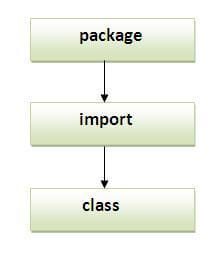
sequence of package

Subpackage

Package inside the package is called the subpackage. It should be created to categorize the package further.
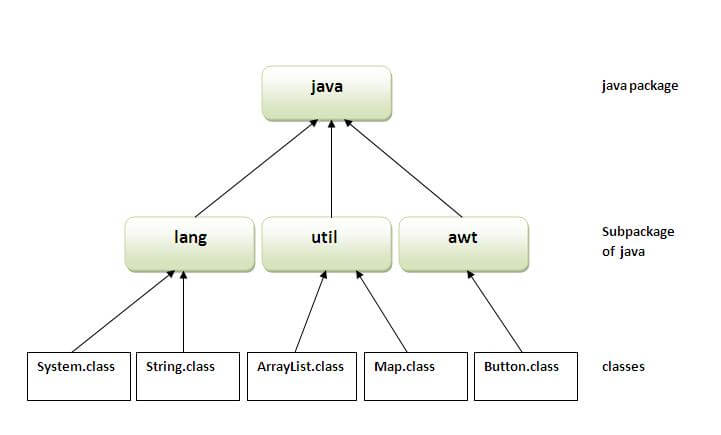
Let's take an example, Sun Microsystem has definded a package named java that contains many classes like System, String, Reader, Writer, Socket etc. These classes represent a particular group e.g. Reader and Writer classes are for Input/Output operation, Socket and ServerSocket classes are for networking etc and so on. So, Sun has subcategorized the java package into subpackages such as lang, net, io etc. and put the Input/Output related
classes in
 io package, Server and ServerSocket classes in net packages and so on.

The standard of defining package is domain.company.package e.g. com.javatpoint.bean or org.sssit.dao.

Example of Subpackage

  1. package com.javatpoint.core;  
  2. class Simple{  
  3.   public static void main(String args[]){  
  4.    System.out.println("Hello subpackage");  
  5.   }  
  6. }  
To Compile: javac -d . Simple.java
To Run: java com.javatpoint.core.Simple
Output:Hello subpackage

How to send the class file to another directory or drive?

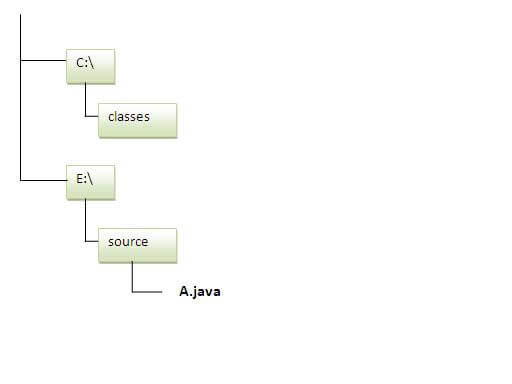
There is a scenario, I want to put the class file of A.java source file in classes folder of c: drive. For example:
how to put class file in another package
  1. //save as Simple.java  
  2.   
  3. package mypack;  
  4. public class Simple{  
  5.  public static void main(String args[]){  
  6.     System.out.println("Welcome to package");  
  7.    }  
  8. }  

To Compile:

e:\sources> javac -d c:\classes Simple.java

To Run:

To run this program from e:\source directory, you need to set classpath of the directory where the class file resides.
e:\sources> set classpath=c:\classes;.;
e:\sources> java mypack.Simple

Another way to run this program by -classpath switch of java:

The -classpath switch can be used with javac and java tool.
To run this program from e:\source directory, you can use -classpath switch of java that tells where to look for class file. For example:
e:\sources> java -classpath c:\classes mypack.Simple
Output:Welcome to package

Ways to load the class files or jar files

There are two ways to load the class files temporary and permanent.
  • Temporary
    • By setting the classpath in the command prompt
    • By -classpath switch
  • Permanent
    • By setting the classpath in the environment variables
    • By creating the jar file, that contains all the class files, and copying the jar file in the jre/lib/ext folder.

Rule: There can be only one public class in a java source file and it must be saved by the public class name.

  1. //save as C.java otherwise Compilte Time Error  
  2.   
  3. class A{}  
  4. class B{}  
  5. public class C{}  

How to put two public classes in a package?

If you want to put two public classes in a package, have two java source files containing one public class, but keep the package name same. For example:
  1. //save as A.java  
  2.   
  3. package javatpoint;  
  4. public class A{}  
  1. //save as B.java  
  2.   
  3. package javatpoint;  
  4. public class B{}  

Wednesday, 27 August 2014

LayoutManagers in java

LayoutManagers:

The LayoutManagers are used to arrange components in a particular manner. LayoutManager is an interface that is implemented by all the classes of layout managers. There are following classes that represents the layout managers: 
  1. java.awt.BorderLayout
  2. java.awt.FlowLayout
  3. java.awt.GridLayout
  4. java.awt.CardLayout
  5. java.awt.GridBagLayout
  6. javax.swing.BoxLayout
  7. javax.swing.GroupLayout
  8. javax.swing.ScrollPaneLayout
  9. javax.swing.SpringLayout etc.

BorderLayout:

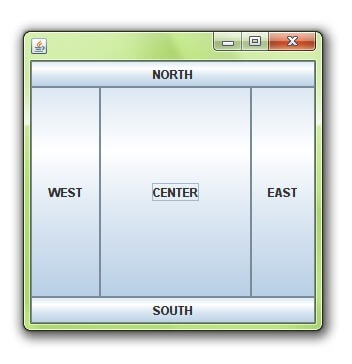
The BorderLayout is used to arrange the components in five regions: north, south, east, west and center. Each region (area) may contain one component only. It is the default layout of frame or window. The BorderLayout provides five constants for each region:
  1. public static final int NORTH
  2. public static final int SOUTH
  3. public static final int EAST
  4. public static final int WEST
  5. public static final int CENTER

Constructors of BorderLayout class:

  • BorderLayout(): creates a border layout but with no gaps between the components.
  • JBorderLayout(int hgap, int vgap): creates a border layout with the given horizontal and vertical gaps between the components.

Example of BorderLayout class:

BorderLayout class
  1. import java.awt.*;  
  2. import javax.swing.*;  
  3.   
  4. public class Border {  
  5. JFrame f;  
  6. Border(){  
  7.     f=new JFrame();  
  8.       
  9.     JButton b1=new JButton("NORTH");;  
  10.     JButton b2=new JButton("SOUTH");;  
  11.     JButton b3=new JButton("EAST");;  
  12.     JButton b4=new JButton("WEST");;  
  13.     JButton b5=new JButton("CENTER");;  
  14.       
  15.     f.add(b1,BorderLayout.NORTH);  
  16.     f.add(b2,BorderLayout.SOUTH);  
  17.     f.add(b3,BorderLayout.EAST);  
  18.     f.add(b4,BorderLayout.WEST);  
  19.     f.add(b5,BorderLayout.CENTER);  
  20.       
  21.     f.setSize(300,300);  
  22.     f.setVisible(true);  
  23. }  
  24. public static void main(String[] args) {  
  25.     new Border();  
  26. }  
  27. }  


GridLayout

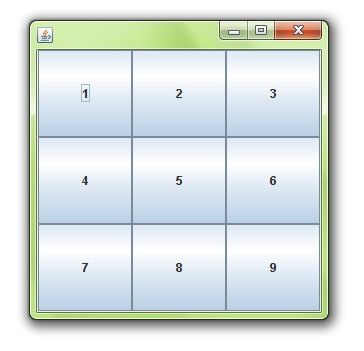
The GridLayout is used to arrange the components in rectangular grid. One component is displayed in each rectangle.

Constructors of GridLayout class:

  1. GridLayout(): creates a grid layout with one column per component in a row.
  2. GridLayout(int rows, int columns): creates a grid layout with the given rows and columns but no gaps between the components.
  3. GridLayout(int rows, int columns, int hgap, int vgap): creates a grid layout with the given rows and columns alongwith given horizontal and vertical gaps.

Example of GridLayout class:

GridLayout class
  1. import java.awt.*;  
  2. import javax.swing.*;  
  3.   
  4. public class MyGridLayout{  
  5. JFrame f;  
  6. MyGridLayout(){  
  7.     f=new JFrame();  
  8.       
  9.     JButton b1=new JButton("1");  
  10.     JButton b2=new JButton("2");  
  11.     JButton b3=new JButton("3");  
  12.     JButton b4=new JButton("4");  
  13.     JButton b5=new JButton("5");  
  14.         JButton b6=new JButton("6");  
  15.         JButton b7=new JButton("7");  
  16.     JButton b8=new JButton("8");  
  17.         JButton b9=new JButton("9");  
  18.           
  19.     f.add(b1);f.add(b2);f.add(b3);f.add(b4);f.add(b5);  
  20.     f.add(b6);f.add(b7);f.add(b8);f.add(b9);  
  21.   
  22.     f.setLayout(new GridLayout(3,3));  
  23.     //setting grid layout of 3 rows and 3 columns  
  24.   
  25.     f.setSize(300,300);  
  26.     f.setVisible(true);  
  27. }  
  28. public static void main(String[] args) {  
  29.     new MyGridLayout();  
  30. }  
  31. }  


FlowLayout

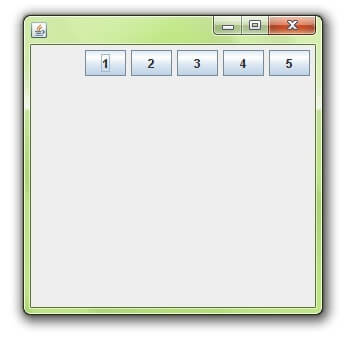
The FlowLayout is used to arrange the components in a line, one after another (in a flow). It is the default layout of applet or panel.

Fields of FlowLayout class:

  1. public static final int LEFT
  2. public static final int RIGHT
  3. public static final int CENTER
  4. public static final int LEADING
  5. public static final int TRAILING

Constructors of FlowLayout class:

  1. FlowLayout(): creates a flow layout with centered alignment and a default 5 unit horizontal and vertical gap.
  2. FlowLayout(int align): creates a flow layout with the given alignment and a default 5 unit horizontal and vertical gap.
  3. FlowLayout(int align, int hgap, int vgap): creates a flow layout with the given alignment and the given horizontal and vertical gap.

Example of FlowLayout class:

FlowLayout class
  1. import java.awt.*;  
  2. import javax.swing.*;  
  3.   
  4. public class MyFlowLayout{  
  5. JFrame f;  
  6. MyFlowLayout(){  
  7.     f=new JFrame();  
  8.       
  9.     JButton b1=new JButton("1");  
  10.     JButton b2=new JButton("2");  
  11.     JButton b3=new JButton("3");  
  12.     JButton b4=new JButton("4");  
  13.     JButton b5=new JButton("5");  
  14.               
  15.     f.add(b1);f.add(b2);f.add(b3);f.add(b4);f.add(b5);  
  16.       
  17.     f.setLayout(new FlowLayout(FlowLayout.RIGHT));  
  18.     //setting flow layout of right alignment  
  19.   
  20.     f.setSize(300,300);  
  21.     f.setVisible(true);  
  22. }  
  23. public static void main(String[] args) {  
  24.     new MyFlowLayout();  
  25. }  
  26. }  

    BoxLayout class:

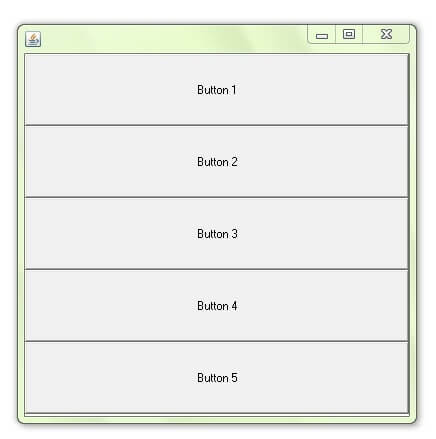
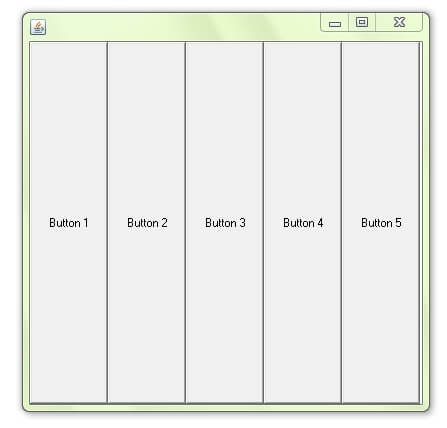
    The BoxLayout is used to arrange the components either vertically or horizontally. For this purpose, BoxLayout provides four constants. They are as follows:

    Note: BoxLayout class is found in javax.swing package.

    Fields of BoxLayout class:

    1. public static final int X_AXIS
    2. public static final int Y_AXIS
    3. public static final int LINE_AXIS
    4. public static final int PAGE_AXIS

    Constructor of BoxLayout class:

    1. BoxLayout(Container c, int axis): creates a box layout that arranges the components with the given axis.

    Example of BoxLayout class with Y-AXIS:

    BoxLayout class
    1. import java.awt.*;  
    2. import javax.swing.*;  
    3.   
    4. public class BoxLayoutExample1 extends Frame {  
    5.  Button buttons[];  
    6.   
    7.  public BoxLayoutExample1 () {  
    8.    buttons = new Button [5];  
    9.     
    10.    for (int i = 0;i<5;i++) {  
    11.       buttons[i] = new Button ("Button " + (i + 1));  
    12.       add (buttons[i]);  
    13.     }  
    14.   
    15. setLayout (new BoxLayout (this, BoxLayout.Y_AXIS));  
    16. setSize(400,400);  
    17. setVisible(true);  
    18. }  
    19.   
    20. public static void main(String args[]){  
    21. BoxLayoutExample1 b=new BoxLayoutExample1();  
    22. }  
    23. }  


    Example of BoxLayout class with X-AXIS:

    BoxLayout class example
    1. import java.awt.*;  
    2. import javax.swing.*;  
    3.   
    4. public class BoxLayoutExample2 extends Frame {  
    5.  Button buttons[];  
    6.   
    7.  public BoxLayoutExample2() {  
    8.    buttons = new Button [5];  
    9.     
    10.    for (int i = 0;i<5;i++) {  
    11.       buttons[i] = new Button ("Button " + (i + 1));  
    12.       add (buttons[i]);  
    13.     }  
    14.   
    15. setLayout (new BoxLayout(this, BoxLayout.X_AXIS));  
    16. setSize(400,400);  
    17. setVisible(true);  
    18. }  
    19.   
    20. public static void main(String args[]){  
    21. BoxLayoutExample2 b=new BoxLayoutExample2();  
    22. }  
    23. }  


    CardLayout class

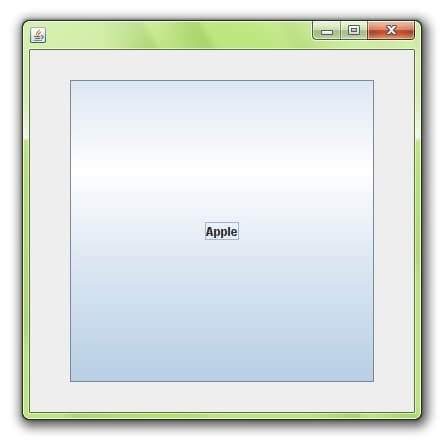
    The CardLayout class manages the components in such a manner that only one component is visible at a time. It treats each component as a card that is why it is known as CardLayout.

    Constructors of CardLayout class:

    1. CardLayout(): creates a card layout with zero horizontal and vertical gap.
    2. CardLayout(int hgap, int vgap): creates a card layout with the given horizontal and vertical gap.

    Commonly used methods of CardLayout class:

    • public void next(Container parent): is used to flip to the next card of the given container.
    • public void previous(Container parent): is used to flip to the previous card of the given container.
    • public void first(Container parent): is used to flip to the first card of the given container.
    • public void last(Container parent): is used to flip to the last card of the given container.
    • public void show(Container parent, String name): is used to flip to the specified card with the given name.

    Example of CardLayout class:

    CardLayout class
    1. import java.awt.*;  
    2. import java.awt.event.*;  
    3.   
    4. import javax.swing.*;  
    5.   
    6. public class CardLayoutExample extends JFrame implements ActionListener{  
    7. CardLayout card;  
    8. JButton b1,b2,b3;  
    9. Container c;  
    10.     CardLayoutExample(){  
    11.           
    12.         c=getContentPane();  
    13.         card=new CardLayout(40,30);  
    14. //create CardLayout object with 40 hor space and 30 ver space  
    15.         c.setLayout(card);  
    16.           
    17.         b1=new JButton("Apple");  
    18.         b2=new JButton("Boy");  
    19.         b3=new JButton("Cat");  
    20.         b1.addActionListener(this);  
    21.         b2.addActionListener(this);  
    22.         b3.addActionListener(this);  
    23.               
    24.         c.add("a",b1);c.add("b",b2);c.add("c",b3);  
    25.                           
    26.     }  
    27.     public void actionPerformed(ActionEvent e) {  
    28.     card.next(c);  
    29.     }  
    30.   
    31.     public static void main(String[] args) {  
    32.         CardLayoutExample cl=new CardLayoutExample();  
    33.         cl.setSize(400,400);  
    34.         cl.setVisible(true);  
    35.         cl.setDefaultCloseOperation(EXIT_ON_CLOSE);  
    36.     }  
    37. }  

Friday, 22 August 2014

Displaying image in swing:

Displaying image in swing:

For displaying image, we can use the method drawImage() of Graphics class.

Syntax of drawImage() method:

  1. public abstract boolean drawImage(Image img, int x, int y, ImageObserver observer): is used draw thespecified image.

Example of displaying image in swing:

Example of displaying image in swing
  1. import java.awt.*;  
  2. import javax.swing.JFrame;  
  3.   
  4. public class MyCanvas extends Canvas{  
  5.       
  6.     public void paint(Graphics g) {  
  7.   
  8.         Toolkit t=Toolkit.getDefaultToolkit();  
  9.         Image i=t.getImage("p3.gif");  
  10.         g.drawImage(i, 120,100,this);  
  11.           
  12.     }  
  13.         public static void main(String[] args) {  
  14.         MyCanvas m=new MyCanvas();  
  15.         JFrame f=new JFrame();  
  16.         f.add(m);  
  17.         f.setSize(400,400);  
  18.         f.setVisible(true);  
  19.     }  
  20.   
  21. }  

Tuesday, 12 August 2014

Swing Components

JComboBox class:

The JComboBox class is used to create the combobox (drop-down list). At a time only one item can be selected from the item list.

Commonly used Constructors of JComboBox class:

JComboBox()
JComboBox(Object[] items)
JComboBox(Vector<?> items)

Commonly used methods of JComboBox class:

1) public void addItem(Object anObject): is used to add an item to the item list.
2) public void removeItem(Object anObject): is used to delete an item to the item list.
3) public void removeAllItems(): is used to remove all the items from the list.
4) public void setEditable(boolean b): is used to determine whether the JComboBox is editable.
5) public void addActionListener(ActionListener a): is used to add the ActionListener.
6) public void addItemListener(ItemListener i): is used to add the ItemListener.

Example of JComboBox class:

  1. import javax.swing.*;  
  2. public class Combo {  
  3. JFrame f;  
  4. Combo(){  
  5.     f=new JFrame("Combo ex");  
  6.       
  7.     String country[]={"India","Aus","U.S.A","England","Newzeland"};  
  8.       
  9.     JComboBox cb=new JComboBox(country);  
  10.     cb.setBounds(5050,90,20);  
  11.     f.add(cb);  
  12.       
  13.     f.setLayout(null);  
  14.     f.setSize(400,500);  
  15.     f.setVisible(true);  
  16.       
  17. }  
  18. public static void main(String[] args) {  
  19.     new Combo();  
  20.       
  21. }  
  22. JTable class :

    The JTable class is used to display the data on two dimensional tables of cells.

    Commonly used Constructors of JTable class:

    JTable(): creates a table with empty cells. 
  23. JTable(Object[][] rows, Object[] columns): creates a table with the specified data.

Example of JTable class:

  1. import javax.swing.*;  
  2. public class MyTable {  
  3.     JFrame f;  
  4. MyTable(){  
  5.     f=new JFrame();  
  6.       
  7.     String data[][]={ {"101","Amit","670000"},  
  8.               {"102","Jai","780000"},  
  9.                           {"101","Sachin","700000"}};  
  10.     String column[]={"ID","NAME","SALARY"};  
  11.       
  12.     JTable jt=new JTable(data,column);  
  13.     jt.setBounds(30,40,200,300);  
  14.       
  15.     JScrollPane sp=new JScrollPane(jt);  
  16.     f.add(sp);  
  17.       
  18.     f.setSize(300,400);  
  19. //  f.setLayout(null);  
  20.     f.setVisible(true);  
  21. }  
  22. public static void main(String[] args) {  
  23.     new MyTable();  
  24. }  
  25. }  
  26. ColorChooser class:

    The JColorChooser class is used to create a color chooser dialog box so that user can select any color.

    Commonly used Constructors of JColorChooser class:

    • JColorChooser(): is used to create a color chooser pane with white color initially.
    • JColorChooser(Color initialColor): is used to create a color chooser pane with the specified color initially.

    Commonly used methods of JColorChooser class:

    public static Color showDialog(Component c, String title, Color initialColor): is used to show the color-chooser dialog box.

    Example of JColorChooser class:

    JColorChooser example
    1. import java.awt.event.*;  
    2. import java.awt.*;  
    3. import javax.swing.*;  
    4.   
    5. public class JColorChooserExample extends JFrame implements ActionListener{  
    6. JButton b;  
    7. Container c;  
    8.   
    9. JColorChooserExample(){  
    10.     c=getContentPane();  
    11.     c.setLayout(new FlowLayout());  
    12.       
    13.     b=new JButton("color");  
    14.     b.addActionListener(this);  
    15.       
    16.     c.add(b);  
    17. }  
    18.   
    19. public void actionPerformed(ActionEvent e) {  
    20. Color initialcolor=Color.RED;  
    21. Color color=JColorChooser.showDialog(this,"Select a color",initialcolor);  
    22. c.setBackground(color);  
    23. }  
    24.   
    25. public static void main(String[] args) {  
    26.     JColorChooserExample ch=new JColorChooserExample();  
    27.     ch.setSize(400,400);  
    28.     ch.setVisible(true);  
    29.     ch.setDefaultCloseOperation(EXIT_ON_CLOSE);  
    30. }  
    31. }  


    JProgressBar class:

    The JProgressBar class is used to display the progress of the task.

    Commonly used Constructors of JProgressBar class:

    • JProgressBar(): is used to create a horizontal progress bar but no string text.
    • JProgressBar(int min, int max): is used to create a horizontal progress bar with the specified minimum and maximum value.
    • JProgressBar(int orient): is used to create a progress bar with the specified orientation, it can be either Vertical or Horizontal by using SwingConstants.VERTICAL and SwingConstants.HORIZONTAL constants.
    • JProgressBar(int orient, int min, int max): is used to create a progress bar with the specified orientation, minimum and maximum value.

    Commonly used methods of JProgressBar class:

    1) public void setStringPainted(boolean b): is used to determine whether string should be displayed.
    2) public void setString(String s): is used to set value to the progress string.
    3) public void setOrientation(int orientation): is used to set the orientation, it may be either vertical or horizontal by using SwingConstants.VERTICAL and SwingConstants.HORIZONTAL constants..
    4) public void setValue(int value): is used to set the current value on the progress bar.

    Example of JProgressBar class:

    1. import javax.swing.*;  
    2. public class MyProgress extends JFrame{  
    3. JProgressBar jb;  
    4. int i=0,num=0;  
    5.   
    6. MyProgress(){  
    7. jb=new JProgressBar(0,2000);  
    8. jb.setBounds(40,40,200,30);  
    9.       
    10. jb.setValue(0);  
    11. jb.setStringPainted(true);  
    12.       
    13. add(jb);  
    14. setSize(400,400);  
    15. setLayout(null);  
    16. }  
    17.   
    18. public void iterate(){  
    19. while(i<=2000){  
    20.   jb.setValue(i);  
    21.   i=i+20;  
    22.   try{Thread.sleep(150);}catch(Exception e){}  
    23. }  
    24. }  
    25. public static void main(String[] args) {  
    26.     MyProgress m=new MyProgress();  
    27.     m.setVisible(true);  
    28.     m.iterate();  
    29. }  
    30. }  


    JSlider class:

    The JSlider is used to create the slider. By using JSlider a user can select a value from a specific range.

    Commonly used Constructors of JSlider class:

    • JSlider(): creates a slider with the initial value of 50 and range of 0 to 100.
    • JSlider(int orientation): creates a slider with the specified orientation set by either JSlider.HORIZONTAL or JSlider.VERTICAL with the range 0 to 100 and initial value 50.
    • JSlider(int min, int max): creates a horizontal slider using the given min and max.
    • JSlider(int min, int max, int value): creates a horizontal slider using the given min, max and value.
    • JSlider(int orientation, int min, int max, int value): creates a slider using the given orientation, min, max and value.

    Commonly used Methods of JSlider class:

    1) public void setMinorTickSpacing(int n): is used to set the minor tick spacing to the slider.
    2) public void setMajorTickSpacing(int n): is used to set the major tick spacing to the slider.
    3) public void setPaintTicks(boolean b): is used to determine whether tick marks are painted.
    4) public void setPaintLabels(boolean b): is used to determine whether labels are painted.
    5) public void setPaintTracks(boolean b): is used to determine whether track is painted.

    Simple example of JSlider class:

    example of JSlider class
    1. import javax.swing.*;  
    2.   
    3. public class SliderExample1 extends JFrame{  
    4.   
    5. public SliderExample1() {  
    6. JSlider slider = new JSlider(JSlider.HORIZONTAL, 05025);  
    7. JPanel panel=new JPanel();  
    8. panel.add(slider);  
    9.   
    10. add(panel);  
    11. }  
    12.   
    13. public static void main(String s[]) {  
    14. SliderExample1 frame=new SliderExample1();  
    15. frame.pack();  
    16. frame.setVisible(true);  
    17. }  
    18. }  


    Example of JSlider class that paints ticks:

    example of JSlider class
    1. import javax.swing.*;  
    2.   
    3. public class SliderExample extends JFrame{  
    4.   
    5. public SliderExample() {  
    6.   
    7. JSlider slider = new JSlider(JSlider.HORIZONTAL, 05025);  
    8. slider.setMinorTickSpacing(2);  
    9. slider.setMajorTickSpacing(10);  
    10.   
    11. slider.setPaintTicks(true);  
    12. slider.setPaintLabels(true);  
    13.   
    14. JPanel panel=new JPanel();  
    15. panel.add(slider);  
    16. add(panel);  
    17. }  
    18.   
    19. public static void main(String s[]) {  
    20. SliderExample frame=new SliderExample();  
    21. frame.pack();  
    22. frame.setVisible(true);  
    23.   
    24. }  
    25. }  


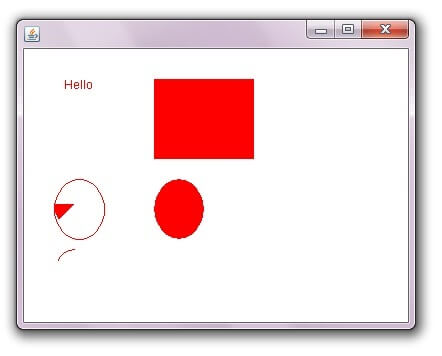
Displaying graphics in swing:

java.awt.Graphics class provides many methods for graphics programming.

Commonly used methods of Graphics class:

  1. public abstract void drawString(String str, int x, int y): is used to draw the specified string.
  2. public void drawRect(int x, int y, int width, int height): draws a rectangle with the specified width and height.
  3. public abstract void fillRect(int x, int y, int width, int height): is used to fill rectangle with the default colorand specified width and height.
  4. public abstract void drawOval(int x, int y, int width, int height): is used to draw oval with the specified width and height.
  5. public abstract void fillOval(int x, int y, int width, int height): is used to fill oval with the default color and specified width and height.
  6. public abstract void drawLine(int x1, int y1, int x2, int y2): is used to draw line between the points(x1, y1) and (x2, y2).
  7. public abstract boolean drawImage(Image img, int x, int y, ImageObserver observer): is used draw the specified image.
  8. public abstract void drawArc(int x, int y, int width, int height, int startAngle, int arcAngle): is used draw acircular or elliptical arc.
  9. public abstract void fillArc(int x, int y, int width, int height, int startAngle, int arcAngle): is used to fill a circular or elliptical arc.
  10. public abstract void setColor(Color c): is used to set the graphics current color to the specified color.
  11. public abstract void setFont(Font font): is used to set the graphics current font to the specified font.

Example of displaying graphics in swing:

Example of displaying graphics in swing
  1. import java.awt.*;  
  2. import javax.swing.JFrame;  
  3.   
  4. public class DisplayGraphics extends Canvas{  
  5.       
  6.     public void paint(Graphics g) {  
  7.         g.drawString("Hello",40,40);  
  8.         setBackground(Color.WHITE);  
  9.         g.fillRect(13030,10080);  
  10.         g.drawOval(30,130,5060);  
  11.         setForeground(Color.RED);  
  12.         g.fillOval(130,130,5060);  
  13.         g.drawArc(3020040,50,90,60);  
  14.         g.fillArc(3013040,50,180,40);  
  15.           
  16.     }  
  17.         public static void main(String[] args) {  
  18.         DisplayGraphics m=new DisplayGraphics();  
  19.         JFrame f=new JFrame();  
  20.         f.add(m);  
  21.         f.setSize(400,400);  
  22.         //f.setLayout(null);  
  23.         f.setVisible(true);  
  24.     }  
  25.   }
  26.