.jpg)
Swing (Graphics Programming in java):
| Swing is a part of JFC (Java Foundation Classes) that is used to create GUI application. It is built on the top of AWT and entirely written in java. |
Advantage of Swing over AWT:
There are many advantages of Swing over AWT. They are as follows:
|
What is JFC ?
| The Java Foundation Classes (JFC) are a set of GUI components which simplify the development of desktop
applications
. |
Hierarchy of swing:
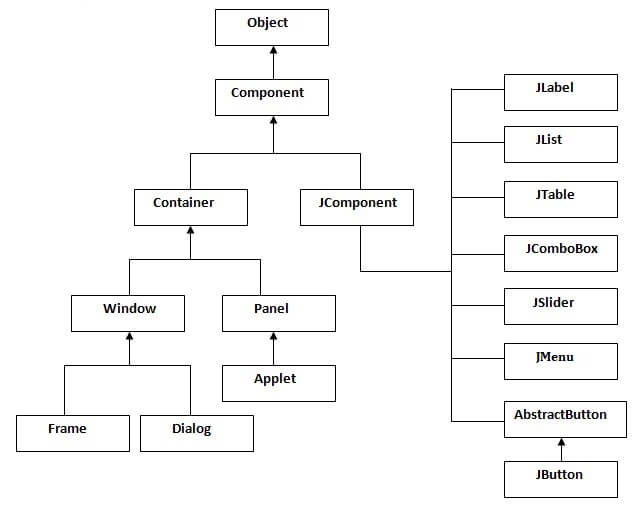
Commonly used Methods of Component class:
| 1)public void add(Component c) |
| 2)public void setSize(int width,int height) |
| 3)public void setLayout(LayoutManager m) |
| 4)public void setVisible(boolean) |
Creating a Frame:
There are two ways to create a frame:
|
Simple example of Swing by Association:
- import javax.swing.*;
- public class Simple {
- JFrame f;
- Simple(){
- f=new JFrame();
- JButton b=new JButton("click");
- b.setBounds(130,100,100, 40);
- f.add(b);
- f.setSize(400,500);
- f.setLayout(null);
- f.setVisible(true);
- }
- public static void main(String[] args) {
- new Simple();
- }
- }
| public void setBounds(int xaxis, int yaxis, int width, int height); have been used in the above example that sets the position of the button. |
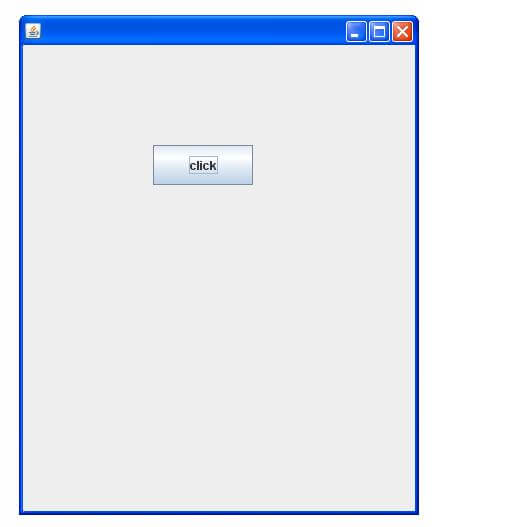
Simple example of Swing by inheritance:
- import javax.swing.*;
- public class Simple2 extends JFrame{
- JFrame f;
- Simple2(){
- JButton b=new JButton("click");
- b.setBounds(130,100,100, 40);
- add(b);
- setSize(400,500);
- setLayout(null);
- setVisible(true);
- }
- public static void main(String[] args) {
- new Simple2();
- }
- }
JButton class:
The JButton class is used to create a button that have plateform-independent implementation. Commonly used Constructors:
- JButton(): creates a button with no text and icon.
- JButton(String s): creates a button with the specified text.
- JButton(Icon i): creates a button with the specified icon object.
Commonly used Methods of AbstractButton class:
| 1) public void setText(String s): is used to set specified text on button. |
| 2) public String getText(): is used to return the text of the button. |
| 3) public void setEnabled(boolean b): is used to enable or disable the button. |
| 4) public void setIcon(Icon b): is used to set the specified Icon on the button. |
| 5) public Icon getIcon(): is used to get the Icon of the button. |
| 6) public void setMnemonic(int a): is used to set the mnemonic on the button. |
| 7) public void addActionListener(ActionListener a): is used to add the action listener to this object. |
Note: The JButton class extends AbstractButton class.
Example of displaying image on the button:
- import java.awt.event.*;
- import javax.swing.*;
- public class ImageButton{
- ImageButton(){
- JFrame f=new JFrame();
- JButton b=new JButton(new ImageIcon("b.jpg"));
- b.setBounds(130,100,100, 40);
- f.add(b);
- f.setSize(300,400);
- f.setLayout(null);
- f.setVisible(true);
- f.setDefaultCloseOperation(JFrame.EXIT_ON_CLOSE);
- }
- public static void main(String[] args) {
- new ImageButton();
- }
- }
JRadioButton class:
The JRadioButton class is used to create a radio button.Commonly used Constructors of JRadioButton class:
- JRadioButton(): creates an unselected radio button with no text.
- JRadioButton(String s): creates an unselected radio button with specified text.
- JRadioButton(String s, boolean selected): creates a radio button with the specified text and selected status.
Commonly used Methods of AbstractButton class:
| 1) public void setText(String s): is used to set specified text on button. |
| 2) public String getText(): is used to return the text of the button. |
| 3) public void setEnabled(boolean b): is used to enable or disable the button. |
| 4) public void setIcon(Icon b): is used to set the specified Icon on the button. |
| 5) public Icon getIcon(): is used to get the Icon of the button. |
| 6) public void setMnemonic(int a): is used to set the mnemonic on the button. |
| 7) public void addActionListener(ActionListener a): is used to add the action listener to this object. |
Note: The JRadioButton class extends the JToggleButton class that extends AbstractButton class.
example of JRadioButton class:
- import javax.swing.*;
- public class Radio {
- JFrame f;
- Radio(){
- f=new JFrame();
- JRadioButton r1=new JRadioButton("A) Male");
- JRadioButton r2=new JRadioButton("B) FeMale");
- r1.setBounds(50,100,70,30);
- r2.setBounds(50,150,70,30);
- ButtonGroup bg=new ButtonGroup();
- bg.add(r1);
- bg.add(r2);
- f.add(r1);f.add(r2);
- f.setSize(300,300);
- f.setLayout(null);
- f.setVisible(true);
- }
- public static void main(String[] args) {
- new Radio();
- }
- }
ButtonGroup class:
The ButtonGroup class can be used to group multiple buttons so that at a time only one button can be selected.JTextArea class:
The JTextArea class is used to create a text area. It is a multi line area that displays the plain text only.Commonly used Constructors:
- JTextArea(): creates a text area that displays no text initially.
- JTextArea(String s): creates a text area that displays specified text initially.
- JTextArea(int row, int column): creates a text area with the specified number of rows and columns that displays no text initially..
- JTextArea(String s, int row, int column): creates a text area with the specified number of rows and columnsthat displays specified text.
Commonly used methods of JTextArea class:
| 1) public void setRows(int rows): is used to set specified number of rows. |
| 2) public void setColumns(int cols):: is used to set specified number of columns. |
| 3) public void setFont(Font f): is used to set the specified font. |
| 4) public void insert(String s, int position): is used to insert the specified text on the specified position. |
| 5) public void append(String s): is used to append the given text to the end of the document. |
Example of JTextField class:
- import java.awt.Color;
- import javax.swing.*;
- public class TArea {
- JTextArea area;
- JFrame f;
- TArea(){
- f=new JFrame();
- area=new JTextArea(300,300);
- area.setBounds(10,30,300,300);
- area.setBackground(Color.black);
- area.setForeground(Color.white);
- f.add(area);
- f.setSize(400,400);
- f.setLayout(null);
- f.setVisible(true);
- }
- public static void main(String[] args) {
- new TArea();
- }
- }

 Posts
Posts


No comments:
Post a Comment